Table of Contents:
- Introduction
- What Are Crawl Errors in Google Search Console?
- Where to Find Crawl Errors in Google Search Console
- Understanding the Most Common Crawl Error Types
- Step-by-Step Process to Fix Crawl Errors
- Tools for Faster Crawl Error Diagnosis
- How to Prevent Crawl Errors: Best Practices
- Final Thoughts
- Frequently Asked Questions
Google can’t rank any page that it can’t crawl. Google must understand, crawl, and index your web page; otherwise, it can’t rank it. A crawl error occurs when Googlebot tries to visit a page on your site but runs into a problem such as a server crash, a missing page, a broken redirect, or a robots.txt block. Crawl errors can quietly block indexing, waste your site’s crawl budget, and cost you traffic that could convert.
The good part is that most crawl errors are fixable. With Google Search Console, you can get clear data to diagnose and resolve crawl errors. It provides data through two key reports: the Page Indexing report and the Crawl Stats report. Now that you have the reports, the next battle is knowing where to look for errors in the reports and what actions are to take once you spot an error.
This guide helps you find crawl errors in Google Search Console, suggests measures to fix them by type, and shares best practices to avoid them in the future.
Let’s get started!
Key Takeaways:
- Crawl errors occur when Googlebot can’t successfully access a URL. It may encounter issues such as server failures, missing pages, blocked access, or confusing signals such as soft 404s.
- There are primarily two reports in Google Search Console to identify crawl errors: the Page Indexing report under the Indexing section and the Crawl Stats report under the Settings section. You can use the URL Inspection tool to diagnose issues further.
- You don’t need to fix every single crawl error. It is essential to prioritize and focus on high-value pages first, such as the homepage, money pages, and pages with traffic or backlinks.
- Different crawl errors require different solutions. You should treat different errors like a 404, 5xx server error, redirect issue, and robots.txt block in a different way.
- Don't redirect every 404. Redirect a deleted URL when a relevant replacement exists; intentional 404s or 410s can be appropriate.
- After fixing, always click Validate Fix in the Page Indexing report and request indexing for important URLs. Give Google time to recrawl the affected URLs.
- Regular monitoring with weekly checks, clean sitemaps, and proper redirects can help prevent most crawl errors from returning.
- A clean crawl profile can protect your crawl budget, improve indexing, and support better organic visibility.
What Are Crawl Errors in Google Search Console?
Crawl errors in Google Search Console are issues that occur when Googlebot tries to visit a webpage but is unable to access or crawl it successfully. Instead of retrieving those pages normally, it encounters problems such as server failures, missing pages, blocked access, or confusing signals such as soft 404s.
This is analogous to a reader reading your article to make a synopsis. If the first page of your book is locked or the book has missing pages, the reader can never properly understand what it really means. Similarly, when Google’s automated system fails to understand your page due to any of the issues, Google blocks indexing of those pages, and they become invisible in searches.
What it means if Google’s automated system can’t access your web page properly:
- Your important pages may go missing from search results.
- The crawl budget gets wasted on broken or low-value URLs.
- It might affect your key landing pages, which further impacts your rankings and organic traffic.
The bottom line is simple: Crawl errors are Google’s way to tell you that it tried to access your page, but something went wrong. You must fix these errors to ensure your most valuable pages are always indexed and visible in Google searches.
Where to Find Crawl Errors in Google Search Console
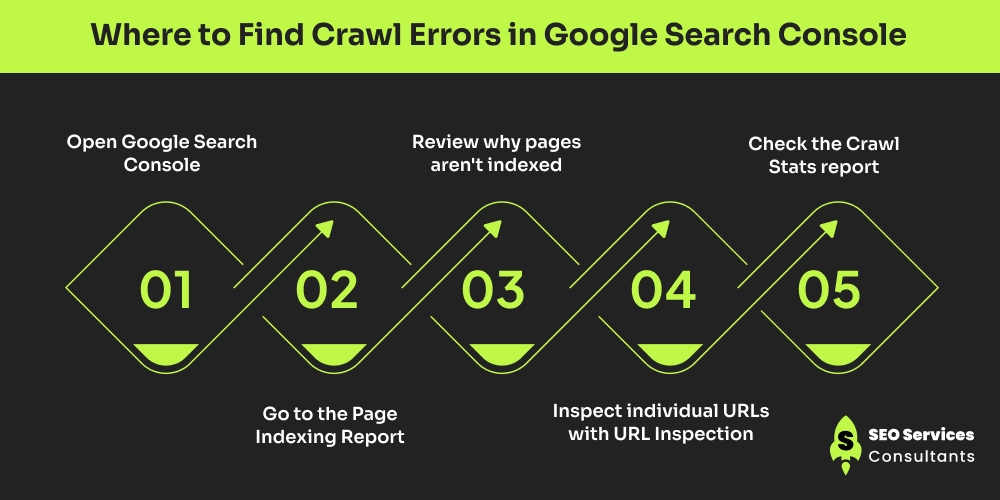
Google Search Console no longer has a dedicated crawl error report. Most crawl-related errors now appear in these two reports: Page Indexing and Crawl Stats. For diagnosing individual URLs, you can then use the URL Inspection tool.
Here’s a quick overview of how you can use them:
Search Console Area |
Purpose |
|---|---|
| Page indexing | Identify URLs that aren't indexed and understand why |
| Crawl Stats | Analyze Googlebot crawling, response codes, server and connectivity issues |
| URL Inspection | Investigate and test a specific URL |
Step 1: Open Google Search Console
- Log in to Google Search Console.
- Select the correct website or property you wish to audit from the dropdown option.
- If you manage more than one site, ensure you are looking at the right one before you start drawing any conclusions.
Step 2: Go to the Page Indexing Report
- In the left-hand menu, click Indexing and then select Pages.
- Here you can find why specific pages are not indexed, for instance, blocked, not found, or server errors. You can get all these details under “Why pages aren't indexed”.
Step 3: Review why pages aren't indexed
You can find reasons for unindexed pages under the section “Why pages aren’t indexed”. Common crawl-related issues include:
- Server error (5xx)
- Not found (404)
- Soft 404
- Redirect error
- Blocked by robots.txt
- Crawled but currently not indexed (and other related statuses)
You can click on any reason to see the list of affected URLs. You can also export the list for easier review.
Step 4: Inspect individual URLs with URL Inspection
To diagnose a specific page in detail, you can use the URL Inspection tool at the top of Google Search Console. Simply paste any problematic URL and click Enter. This tool shows you:
- Whether Google could crawl the page
- The HTTP status code returned
- If the page is indexed
- Any blocking issues (robots.txt, noindex, etc.)
- The option to test the live URL and request indexing
Step 5: Check the Crawl Stats report
To spot site-wide server or availability problems that may not show up clearly in the Page Indexing report, you can use the Crawl Stats report.
This report gives you a broader view of how Googlebot is crawling your entire site. Pay attention to:
- Host availability
- Response codes (especially 5xx errors and timeouts)
- Crawl request trends
- Any sudden spikes in errors
It is important to note that a long list of reported URLs in Google Search Console doesn’t always mean your site is in trouble. Many of those URLs can be old links, duplicates, or pages you intentionally removed. They might also not need fixing.
The strategy should be that instead of chasing every single error, you should focus on your important pages such as the home page, service pages, or high-traffic landing pages that matter more to your business.
Understanding the Most Common Crawl Error Types
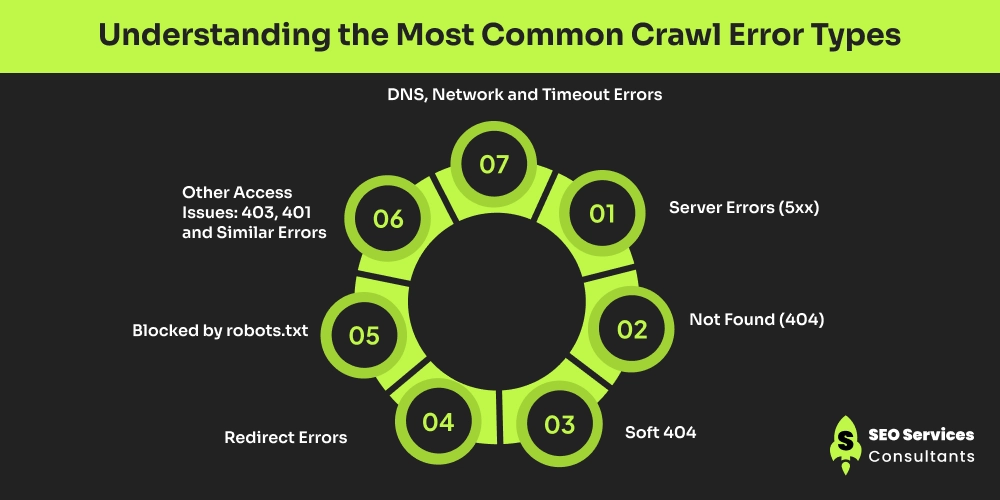
Not all crawl errors are equally serious. It is their impact that has to be kept in mind. Issues that directly impact your important pages appearing in search results should be dealt with as a priority. Some issues are expected or intentional and don’t necessarily indicate an SEO problem. Understanding the impact of each one of them and what they mean can help you know how seriously you should treat them.
Here’s a quick overview of Crawl errors and what it means to help you take decisive action.
Crawl Error |
What It Means |
Priority |
|---|---|---|
| 5xx Server Error | Server failed to fulfill Google's request | Critical |
| 404 Not Found | URL doesn't exist | Medium |
| Soft 404 | Page appears missing/thin but returns 200 | Medium |
| Redirect Error | Redirect is broken, looping, or excessive | High |
| Blocked by robots.txt | Crawling is blocked by robots.txt | High |
| 403 Forbidden | Server refuses Google's request | High |
| 401 Unauthorized | Page requires authentication | High |
| DNS Error | Google can't resolve the domain | Critical |
| Timeout | Server doesn't respond in time | High |
1. Server Errors (5xx)
- These are critical issues that prevent the Google bot from accessing your site.
- The server fails to respond. This can be due to 500 Internal Server Error, 502 Bad Gateway, 503 Service Unavailable, or 504 Gateway Timeout.
- These errors are crucial as they can affect multiple pages at once and may cause Google to slow down crawling across your website.
2. Not Found (404)
- A 404 error means Googlebot requested a page that does not exist on your server.
- This error can happen if the page has been deleted or the URL has been changed.
- The impact of this error depends on the traffic on that page. The impact is high if the page has traffic or backlinks.
- The impact is low to negligible if the page has been intentionally removed and has no value.
3. Soft 404
- A soft 404 error occurs when a page looks like missing to Googlebot. The server returns a 200 OK code, but it appears to Google that the page has no real content.
- The impact can be medium to high, as these pages may waste crawl budget and are usually not indexed.
4. Redirect Errors
- This error occurs when Google followed a redirect but encountered a problem.
- This can be due to a redirect chain that is too long, a redirect loop, an empty target, or a target that returns an error.
- It should be dealt with as a high priority since redirect problems can prevent pages from being crawled and may cause loss of link equity.
5. Blocked by robots.txt
- This error occurs when your robots.txt file prevents Googlebot from crawling the page.
- The priority can be medium to high depending on the pages being blocked.
- The problem occurs if any of the important pages, such as service, product, category, or landing page, are blocked.
6. Other Access Issues: 403, 401 and Similar Errors
These can be authentication or permission errors that stop Googlebot from reaching the content.
- 403 Forbidden: The server understood the request but refuses to provide access.
- 401 Unauthorized: The page requires authentication or valid credentials.
- Other access restrictions: Security systems, firewalls, WAFs, or bot-protection tools may prevent legitimate crawlers from accessing public pages.
The impact can be high if it affects public pages.
7. DNS, Network and Timeout Errors
This occurs when Googlebot couldn’t reach your server due to DNS problems, connection timeouts, or network issues. Following are the common causes of these errors:
- DNS configuration problems
- Server downtime
- Hosting or infrastructure issues
- Firewall or security restrictions
- Server overload
- Slow server response times
These issues should be dealt with on a priority basis as they can affect Google’s ability to crawl your website. These issues can be critical to your website.
Bottom line: The goal should not be in keeping number of errors zero. It should rather be on ensuring that Google can reliably crawl the important pages you want to appear in search results.
Step-by-Step Process to Fix Crawl Errors
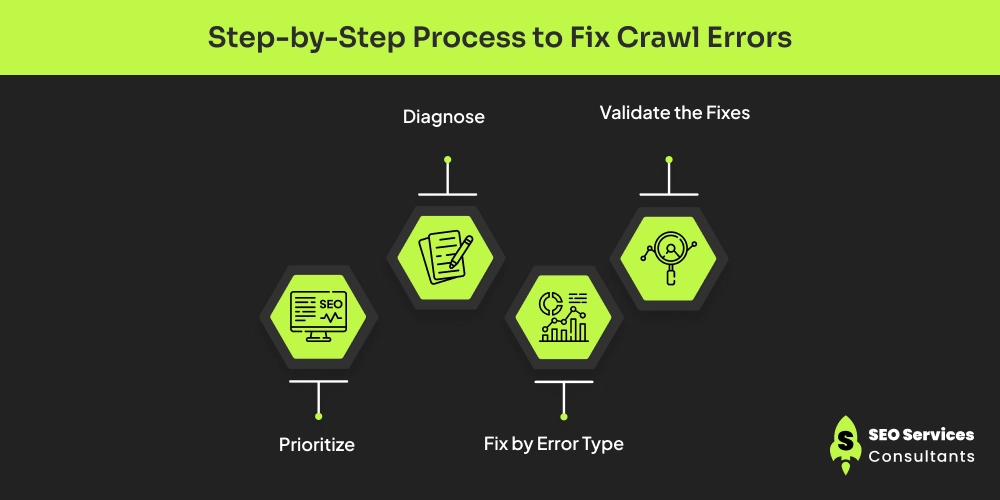
Fixing crawl errors can become much simpler if you follow a clear process instead of randomly fixing every URL. Instead of chasing every single issue, prioritize what matters most and apply the right fix for each error type.
Here’s a practical step-by-step approach you can follow:
1. Prioritize
Not every error requires immediate attention. You can start by prioritizing pages with the greatest business and SEO value. These can be:
- Homepage
- Service and product pages
- High-converting landing pages
- Pages generating organic traffic
- URLs with valuable backlinks
- Important category or location pages
You can ignore intentional 404s or low‑value URLs that don’t need indexing. The table below shows issues you can deal with based on priority.
Priority |
Issues to Address |
Why |
|---|---|---|
| Critical | 5xx errors, DNS failures, widespread timeouts | Google may be unable to access large portions of your site |
| High | Important pages blocked by robots.txt, 403 errors, redirect problems | Valuable pages may become inaccessible to Google |
| Medium | Important 404s, soft 404s, broken internal links | Can affect user experience and SEO signals |
| Low | Intentional 404s, obsolete URLs with no value | Usually don't require action |
2. Diagnose
Once you know which URLs are not crawled, the next to be followed is to identify the root cause and determine exactly why Google is unable to crawl those pages.
Here’s a quick overview of what you can look for to identify the issue:
What to Check |
What to Look For |
Tool |
|---|---|---|
| URL status | Indexed, not indexed, error | URL Inspection |
| HTTP status | 200, 301, 404, 403, 5xx | URL Inspection/server tools |
| Crawl access | Can Google access the URL? | URL Inspection |
| robots.txt | Is crawling blocked? | robots.txt |
| Redirects | Chains, loops, incorrect destinations | Redirect checker/crawler |
| Canonical | Correct canonical URL | URL Inspection/source code |
| Internal links | Broken or outdated links | Screaming Frog/Sitebulb |
| Sitemap | Correct URLs included | Search Console |
| Server | Downtime, errors, slow response | Server logs/hosting |
| Security | WAF/firewall blocking bots | Hosting/security platform |
You can follow the steps below to diagnose the cause of the crawling error
a) Inspect the URL
Open URL Inspection in Google Search Console and enter the affected URL. You can test the live URL to check the page as it currently exists. You can look for signals such as:
- Whether the URL is accessible to Google
- HTTP response information
- Indexing status
- Canonical URL
- Crawl information
- Any reported accessibility or indexing issues
b) Check Crawl Stats
Check if the issue affects multiple URLs. To identify the issue, you can look for unusual patterns in:
- Googlebot requests
- Server response times
- 5xx responses
- DNS errors
- Server connectivity issues
If there is a sudden increase in server errors or a sharp change in response time, the issue may be linked to broader infrastructure rather than an issue with individual pages.
c) Check Your Server and Website Configuration
For persistent or difficult-to-diagnose errors, you can investigate your:
- Server and application error logs
- Hosting configuration
- robots.txt file
- Redirect rules
- Firewall or WAF settings
- CMS plugins and themes
- Caching configuration
- DNS configuration
3. Fix by Error Type
Once you have diagnosed the cause, you can apply the following recommended solutions:
Error |
Common Causes |
How to Fix |
|---|---|---|
| 404 | Deleted page, changed URL, broken link | Restore page, redirect, or leave intentionally deleted |
| 5xx | Server overload, hosting issue, application error | Check server logs, hosting, plugins, resources |
| Soft 404 | Empty/thin page, missing content with 200 status | Add useful content or return 404/410 |
| Redirect error | Redirect loop, chain, broken destination | Point URL directly to final destination |
| robots.txt blocked | Incorrect Disallow rule | Remove or modify blocking rule |
| 403 | Firewall, WAF, security plugin | Adjust access/security rules |
| 401 | Authentication required | Remove authentication if page should be public |
| DNS error | Incorrect DNS records, domain issues | Correct DNS configuration |
| Timeout | Slow server, overload, network problems | Improve server capacity and response time |
Let’s discuss each solution in detail:
Fixing 5xx Server Errors
- Check your hosting dashboard for high CPU, memory, or database usage.
- Review error logs to find the exact cause.
- Temporarily deactivate recently added plugins or themes.
- Clear caching if you use a caching plugin or server-level cache.
- If the server is temporarily overloaded, return a 503 or 429 status so Google knows to retry later.
- Contact your hosting provider if the problem continues.
- After fixing, test the URLs again with the URL Inspection tool.
Not Found (404)
- If the content has moved, you can set up a 301 permanent redirect to the new URL.
- If the content is permanently gone, you can return a 410 Gone status.
- Fix any internal links pointing to the old URL.
- Remove the broken URL from your XML sitemap.
- Leave intentional 404s alone (no action needed).
Soft 404
- If the page doesn’t exist, you can return a proper 404 or 410 status code.
- If the page is ranking, you can add real, useful content so it no longer looks like an error page.
- Avoid thin or empty pages that return a 200 status code.
- You can also add a noindex tag if you want the page to stay live but remain out of the index.
Redirect Errors
- Flatten redirect chains so the old URL points directly to the final destination with a single 301 redirect.
- Eliminate redirect loops (A → B → A).
- Make sure the final target page loads correctly and returns a 200 status.
- Update internal links and sitemaps to point to the final URL.
Blocked by robots.txt
- Open your robots.txt file and remove any accidental Disallow rules for pages you want indexed.
- Test the updated file with Google’s robots.txt Tester.
- If you only want to keep a page out of the index (but still allow crawling), use a noindex meta tag or HTTP header instead of blocking it in robots.txt.
- After updating, request indexing for important pages.
DNS, Network, and Timeout Errors
- Verify your DNS settings with your domain registrar.
- Check firewall, WAF, or security plugin rules and ensure Googlebot IP ranges are allowed.
- Improve server response time and overall capacity.
- Monitor the Crawl Stats report to confirm the issue is resolved.
Access Forbidden (403) or Similar Issues
- Review security plugins, bot protection, or password protection settings.
- Make sure public pages do not require login.
- Allow legitimate Googlebot user-agents and IP ranges.
- Test again using the URL Inspection tool’s live test.
4. Validate the Fixes
Fixing an error on your website doesn’t automatically mean Google will know about it immediately. You need to tell Google to recheck your pages, monitor the progress, and verify it.
The table below shows the steps to follow while validating the fixes. You should focus on monitoring overall trends and important URLs rather than individual URLs.
Step |
Tool / Location |
Frequency |
|---|---|---|
| Check Page indexing report | Indexing → Pages | Weekly |
| Review Crawl Stats | Settings → Crawl Stats | Weekly / after fixes |
| Inspect important URLs | URL Inspection tool | After each fix |
| Click “Validate Fix” | Inside each error category | After fixing group |
| Monitor indexing recovery | Page indexing graph | Next 2–4 weeks |
Tools for Faster Crawl Error Diagnosis
Google Search Console is generally your starting point for identifying crawl and indexing issues. For deeper diagnosis, especially on large websites, use tools like a website crawler, backlink tools, and server logs to add context when you need deeper investigation.
Tool |
Best For |
What You Can Check |
|---|---|---|
| Google Search Console | Overall monitoring | Indexing, crawl and URL issues |
| URL Inspection | Individual URLs | Crawl/indexing status and live testing |
| Crawl Stats | Server/crawl behavior | Googlebot activity, response issues |
| Screaming Frog | Sitewide crawling | Broken links, redirects, status codes |
| Sitebulb | Technical SEO auditing | Crawl and site architecture issues |
| Ahrefs | Backlink analysis | Links pointing to broken URLs |
| Semrush | Site auditing | Technical issues and broken pages |
| Server Logs | Advanced diagnosis | Googlebot requests and server responses |
How to Prevent Crawl Errors: Best Practices
Fixing the crawl error is one part of optimization. You should also take steps to prevent recurrence of these errors. The table below outlines the best practices to help keep your site accessible to Google and reduce unnecessary crawling issues.
Practice |
Why It Matters |
|---|---|
| Use proper redirects during migrations | Avoid redirect chains and loops |
| Keep robots.txt clean | Prevent accidental blocking of important pages |
| Maintain consistent canonical tags | Avoid duplicate or conflicting signals |
| Control unnecessary URL parameters | Reduce unnecessary crawling |
| Monitor hosting health | Prevent downtime and server errors |
| Run regular technical SEO audits | Catch crawl issues early |
Final Thoughts
Crawling errors are not just technical glitches; they affect how Google accesses, indexes, and ranks your website. But the good part is that with a clear workflow, they are manageable. The key is to understand where to look and what to prioritize. Remember to follow these simple steps:
- Find the issues in the Page Indexing report and Crawl Stats report.
- Prioritise the errors that affect your most important pages.
- Diagnose using the URL Inspection tool and other supporting data.
- Fix the root cause based on the error type.
- Validate the changes and monitor the results.
You can protect your crawl budget by regularly checking these issues and addressing critical issues first. Always ensure your valuable pages are indexed so Google gets the best chance to rank them. A cleaner crawl profile leads to better indexing, stronger visibility, and more organic traffic.
Frequently Asked Questions
What are crawl errors in Google Search Console?
Crawl errors in Google Search Console are issues that happen when Googlebot tries to access a webpage but encounters a problem. There can be 404 errors, 5xx server errors, redirect issues, robots.txt blocks, 403 errors, and DNS or timeout problems. Due to these errors, Google’s automated system is unable to crawl and evaluate the affected page.
How do I find crawl errors in Google Search Console?
You can find crawl errors and related issues primarily through two reports: the Page Indexing report and the Crawl Stats report. You can also use the URL Inspection tool to investigate individual URLs.
It is best to prioritise the errors that affect your most important pages, like the home page or valuable service pages.
Do I need to fix every single crawl error?
No. In fact, it is essential to prioritise and focus on high-value pages first, such as the homepage, money pages, and pages with traffic or backlinks. You may ignore intentional 404s and low-value URLs.
What’s the difference between crawl errors and indexing issues?
Crawl errors happen when Googlebot can’t successfully fetch a URL and access a page. These can be 5xx server errors, 404s, DNS failures, or blocked by robots.txt.
Indexing issues occur when Googlebot crawls the page but decides not to index it. This can be due to thin pages, duplicate or low-value content.
Do all 404s need fixing?
No. You don’t have to fix all 404 errors on your website. You only need to fix 404s on important pages such as your product or service pages, or URLs with backlinks. You don’t need to take any action on intentional 404s for deleted content.
How long does Google take to recrawl a fixed page?
There is no fixed timeframe for Google to recrawl a page. The timeline depends on factors such as the website, URL, crawl patterns, and the nature of the change. For important pages, you can use the URL Inspection tool to request indexing, but this doesn’t guarantee immediate crawling or indexing.
Why does Google keep crawling deleted pages?
Google may continue crawling deleted pages if it discovers those URLs through internal links, sitemaps, or external backlinks. Even if you delete a page, those URLs may still exist in sitemaps, internal links, or external backlinks. Google may keep trying to crawl it until it consistently sees a 404/410 and stops finding the URL in links or sitemaps. You should remove them from sitemaps and fix internal links to stop repeated crawling.
What should I do if crawl errors keep coming back to my website?
Persistent crawling errors usually point to deeper issues. These can be server instability, misconfigured redirects, or incorrect robots.txt rules. You should audit your site setup and hosting.
How long does “Validate Fix” take in Google Search Console?
There is no guaranteed validation timeframe. It might take several days to 2 to 3 weeks. Google needs to recrawl affected URLs and verify that the underlying problem has been resolved. Depending on the number of URLs and the type of issue, validation can take time. You can continue monitoring the relevant Search Console report while Google processes the changes. For priority pages, you can go to the URL inspection tool and request indexing to speed up re-crawling.
Is “Crawled but currently not indexed” a crawl error?
Not exactly. It’s rather an indexing error. It means Google successfully crawled the page but chose not to index it. This is often due to thin content, duplication, or low value. It’s an indexing decision, not a pure crawl failure.
Can crawl errors directly hurt my rankings?
Yes. Crawl errors can directly affect your rankings. If important pages are not crawled or indexed, they won’t appear in search results. Frequent server errors can also cause Google to reduce your site’s crawl rate.
Where can I find crawl errors in Google Search Console now?
Google Search Console doesn’t provide the older exclusive “Crawl Errors” report now. Most crawl-related issues are now available in two reports: the Page Indexing report under the Indexing section and the Crawl Stats report under the Settings section.