Key Takeaways
- Claim and verify your Google Business Profile to unlock all optimization features.
- Choose the most relevant primary and secondary categories for your business.
- Keep your business information (NAP) accurate and write a keyword-focused business description.
- Collect genuine customer reviews and respond to them regularly.
- Upload high-quality photos and videos to build trust and improve click-through rates.
- Keep your profile active by updating your information, posts, photos, and services regularly.
Are you also wondering, “Why isn’t my Google Business Profile showing up?” Even though your competitors created their profiles only a year ago, they’re already getting calls and inquiries.
It doesn’t matter when you created your profile.
If you haven’t received any phone calls or direct inquiries, your profile may not be appearing in search results. There can be several reasons for this. Most likely, you haven’t optimized your profile properly, or you entered incorrect information when creating your Google Business Profile.
So, let’s uncover the reasons. But first, here are some stats you should know:
- Nearly 64% of local businesses have claimed their Google Business Profile (GBP).
- Approximately 76% of verified profiles appear in local intent searches.
- Nearly 41% of small businesses operate with incomplete profiles (missing business hours, services, or descriptions), while only 52% have uploaded at least 10 photos.
- Up to 87% of customers use Google to make purchasing decisions, while 86% use Google Maps to find nearby stores or services.
Undeniably, Google Business Profile is a game-changing platform for local businesses. Here, you can add all the necessary information, making it much easier to optimize your profile.
To help you understand what your profile needs, we’ve created this guide. It will help you check your profile, identify what’s missing, and correct any incorrect information.
What Is Google Business Profile?
Formerly known as Google My Business, it was renamed Google Business Profile in 2021. In fact, it is a free tool that lets you manage your business’s online presence without paying a single penny.
Here, you can list your business, add your address, collect customer reviews, and display your phone number so potential customers can contact you directly.
A Google Business Profile helps improve your online presence and increases your visibility on Google Search and Google Maps. However, this only happens when your profile is well optimized, increasing your chances of ranking higher in relevant local search results.
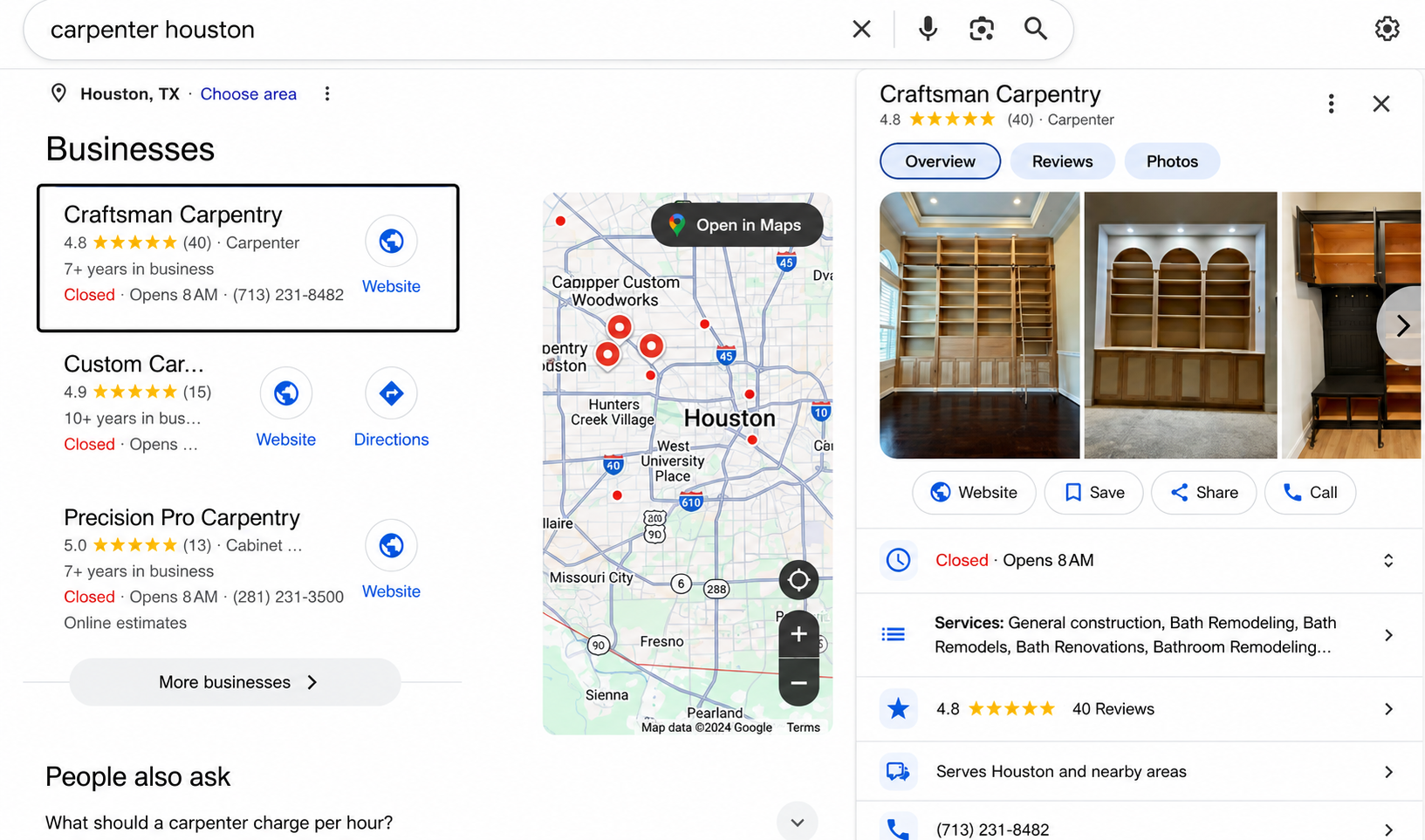
Here’s an example of what a Google Business Profile looks like:
Optimize Your Google Business Profile for Better Local Rankings in 6 Steps
1. Claim and Verify Your Profile
Google only ranks businesses that appear trustworthy. When you create a Google Business Profile, verification is the process Google uses to confirm that your business actually exists at the listed location.
Through the verification process, such as a video recording, Google checks whether your business is legitimate. Until your profile is verified, any optimizations you make in the dashboard remain invisible to the public and carry little to no local SEO value.
Step-by-Step Process
Search on Google Maps
Open Google Maps and search for your business name and address. If your business already exists but is unmanaged, click the “Own this business?” or “Claim this business” option to request ownership.
Create From Scratch
If your business isn’t listed, go to Google Business Profile Manager and enter your exact legal business name.
Choose a Verification Method
Google determines the available verification method based on your business category and risk level. The available options may include:
Automated Phone/SMS: Instant verification using a verification code.
Email: Verify immediately using your business email address (e.g., info@yourbusiness.com).
Video verification: Record a single, unedited video showing your storefront or street sign, business license (if applicable), tools or equipment, and yourself or your staff accessing the workspace.
Crucial Pitfalls to Avoid
Shared Address Trap
Do not use UPS Stores, P.O. boxes, or virtual offices (such as Regus) to fake a physical business location. Doing so can lead to a hard suspension because Google can easily detect these addresses.
Leaving Duplicate Listings
If multiple listings already exist for the same business, merge or remove the duplicates whenever possible. Multiple listings split your reviews and ranking signals, making it harder for Google to determine which profile should appear in local search results.
2. Choose the Right Category
Whether you are creating a Google Business Profile or optimizing an existing one, don’t ignore your business category, especially the primary category.
Google considers it one of the strongest contextual signals for understanding your business and matching it with relevant search intent.
It determines which search queries you can compete for. If you choose the wrong primary category, your profile may struggle to appear in the local map pack, regardless of how many reviews or quality backlinks you have.
Step-by-Step Execution
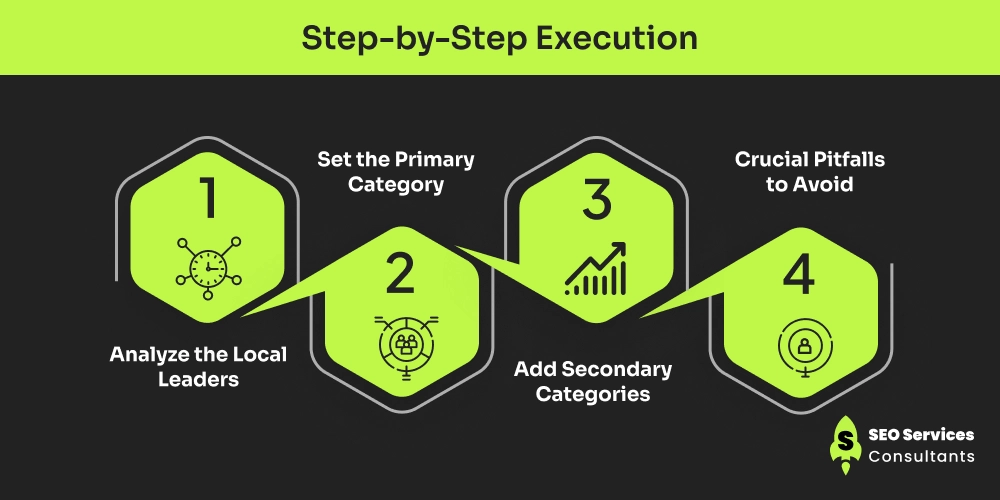
Analyze the Local Leaders
Don’t choose a category without first analyzing your competitors. Search your target keyword on Google Maps in your target location. For example, if you are a plumber in Houston, search “plumber in Houston.” Look at the top three ranking businesses and check their primary business categories. This gives you a good idea of which category Google associates with that service.
Set the Primary Category
If you’re still confused about which category to choose, you can take the help of AI tools for suggestions. Then, select the most relevant category from Google’s predefined list of more than 4,000 business categories. For example, if you specialize in personal injury cases, choose “Personal Injury Attorney” instead of the broader “Lawyer” category.
Add Secondary Categories
After selecting your primary category, add 2 to 5 relevant secondary categories to cover additional services your business offers. This helps your profile appear for more relevant searches without changing your primary focus. For example, a day spa can also add “Massage Therapist” and “Facial Spa” as secondary categories to increase its visibility for those services.
Crucial Pitfalls to Avoid
- Avoid category stuffing: Don't add 8 or 9 secondary categories that only loosely relate to your business. Irrelevant categories can confuse Google's algorithm.
- Don't choose categories based on products: Select categories that describe what your business is, not the products you sell. For example, choose "Furniture Store" instead of "Sofa" or "Dining Table."
3. Core NAP & Description Optimization: The On-Page Alignment
Moving forward in the optimization process, one of the most important things is to check your NAP, which stands for Name, Address, and Phone Number. It might seem like a small detail, but Google’s local algorithm heavily relies on data consistency across the web.
Why is this important? Let’s say your phone number on your Google Business Profile is different from the one listed on Facebook or Yelp. This inconsistency reduces Google’s trust in your business information, which can lower your local search visibility.
So, make sure your business name, address, phone number, and other essential details remain exactly the same across all platforms where your outsourced legal virtual assistants business is listed.
Step-by-Step Execution
Establish a Single "Source of Truth"
Decide on one exact format for your business address. For example, always use “Suite 100” instead of “#100” or “Ste. 100.” Once you’ve finalized the format, copy and paste the same address across your Google Business Profile, website, social media profiles, and business directories to maintain consistency.
Google Business Profile: 123 Main Street, Suite 100, New York, NY 10001
Website: 123 Main Street, Suite 100, New York, NY 10001
Facebook: 123 Main Street, Suite 100, New York, NY 10001
Yelp: 123 Main Street, Suite 100, New York, NY 10001
❌ Incorrect (Inconsistent Address)
Google Business Profile: 123 Main Street, Suite 100
Website: 123 Main Street, #100
Facebook: 123 Main St., Ste. 100
Yelp: 123 Main Street, Unit 100
- Optimize the Name Field: Use your real-world business name. If you have a locally famous brand modifier that is legally documented, include it.
- Draft the Description: Use all 750 characters.
- First 250 characters: Front-load your primary service and primary city (e.g., "Looking for professional roof repair in Austin? ABC Roofing offers..."). This ensures it catches the eye before the user clicks "More".
- Remaining 500 characters: Detail your history, values, unique selling points, and a clear call to action.
Crucial Pitfalls to Avoid
- Keyword Stuffing the Business Name: Adding phrases like "Best Chicago Plumber Cheap Repair" to your business title if it is not your legal name, is a direct violation of Google's Terms of Service. Competitors will report you, and Google will suspend your account.
- Putting Links in Descriptions: Google explicitly forbids URLs, promotional pricing, or sales pitches (like "50% off today!") in the main business description text field.
4. Drive engagement and reviews
When it comes to local rankings, reviews play a crucial role. Factors such as how frequently you receive reviews, the total number of reviews, and your average star rating are important local ranking signals.
Ensure that your reviews sound natural and mention specific services and locations whenever appropriate. This can help your Google Business Profile appear for relevant long-tail local search queries.
Step-by-Step Execution
1. Extract the Short Link:
Most individuals forget to review your services, so what you need to do is copy your Google Business Profile review link from the dashboard. Once you open your profile, find the “Get More Reviews” card and copy the direct g.page/ short link.
2. Automate the Ask:
Sending this link individually might be time-consuming, so you need to build the link into your transactional touchpoints: SMS text message right after service delivery, post-purchase emails, or QR codes printed on physical invoices.
Option 1: CRM + Automation (Best for Service Businesses)
If you use a CRM like Jobber, Housecall Pro, GoHighLevel, HubSpot, or Zoho CRM:
- Mark the job as Completed.
- Create an automation workflow:
- Trigger: Service status = Completed
- Wait: 1–24 hours (optional)
- Send SMS or email
- Include your Google review link.
Example SMS:
Hi Mike, thank you for choosing ABC services. We’d love to hear about your experience. If you have a minute, please leave us a review here: [Your Google Review Link]
Option 2: Google Forms/Sheets + Automation
If you don’t use a CRM:
- Store customer details in a Google Sheet.
- Use automation tools like:
- Zapier
- Make (formerly Integromat)
- n8n
- When you mark a customer's status as Completed, the automation sends an email or SMS with your review link.
Option 3: WhatsApp Automation
If most of your customers communicate on WhatsApp:
- Use the WhatsApp Business API with platforms like WATI, Interakt, AiSensy, or Gallabox.
- When the order is marked complete, automatically send: Thank you for choosing us! We'd appreciate your feedback. Please leave us a Google review: [Review Link]
Option 4: Email Marketing Platforms
If you already collect email addresses, tools like Mailchimp, Brevo, or ActiveCampaign can automatically send a review request after a completed service.
Option 5: Booking Software
Many booking platforms (such as Calendly integrations, Jobber, Housecall Pro, etc.) let you automatically send follow-up emails or texts after an appointment. Simply include your Google review link in the follow-up.
3. Implement the Keyword Reply Strategy:
Respond to every review within 24–48 hours. When responding to a positive review, phrase it naturally to reinforce SEO keywords: “Thanks, John! We love providing top-tier furnace repair to our neighbors here in Columbus.”
4. Seed Your Own Q&A:
Use a personal Google account to ask common questions on your profile (e.g., “Do you offer emergency after-hours plumbing?”). Then, log into your business account and provide the official, keyword-rich answer.
Here is the workflow
Customer Books a Service
→
Work Completed
→
Mark Job as Completed
→
Wait 2–4 Hours
→
Automatic SMS or WhatsApp
→
Customer Clicks the Google Review Link
→
Leaves a Review
Crucial Pitfalls to Avoid
- Review Gating: Forbidding unhappy customers from reviewing you or only sending the review link to customers you know are happy violates Google's policies.
- Ignoring Negative Feedback: Leaving a negative review unanswered signals to both Google and potential customers that the business is unmanaged or careless.
5. Media Assets: Maximizing CTR and Trust
Step-by-Step Execution
- Upload the Pillars: You need at least one perfect Logo photo (square aspect ratio) and one Cover Photo (16:9 ratio that showcases the exterior or best aspect of your business).
- Take Smartphone Geotagged Photos: Use a high-quality smartphone with location services turned ON. When you take photos at your place of business or on a job site, metadata containing the exact GPS coordinates is baked into the file. Uploading these directly helps Google verify your local activity.
- Show "Before and Afters": For service businesses, upload side-by-side collages of your work. For retail or restaurants, upload brightly lit, high-resolution imagery of your menu items and interior vibe.
Crucial Pitfalls to Avoid
- Stock Imagery: Google’s image recognition AI can instantly tell if a photo is a generic stock image purchased online. They will often block these photos from appearing, and it destroys user trust.
- Heavy Overlays and Text: Avoid plastering massive digital logos, phone numbers, or promotional text over your photos. Google prefers raw, unedited photography.
6. Consistent Activity: Signaling Vitality to the Algorithm
Google favors active businesses over stagnant ones. Regularly updating your profile via Google Posts (Updates) and updating attributes alerts the algorithm that your business is operating healthily. It also keeps your listing looking fresh to prospective clients browsing the map.
Step-by-Step Execution
- Deploy Weekly Updates: Treat Google Posts like micro-blogs. Write a 50–100-word update about a current project, a seasonal tip, or a team highlight.
- Add a Call-To-Action (CTA): Every post should utilize the built-in action buttons like "Book," "Order Online," or "Learn More" linked directly to the corresponding landing page on your site.
- Audit Attributes Seasonally: Regularly check the "Attributes" tab to select relevant features (e.g., "Identifies as women-owned," "Wheelchair accessible seating," or "Wi-Fi available").
Crucial Pitfalls to Avoid
- Treating it Like Social Media: Do not post generic memes, personal rants, or non-business content. Keep updates strictly professional and directly tied to what you offer.
- Broken Links: Ensure that the links used in your posts or your primary website button do not lead to 404 error pages or broken redirects.
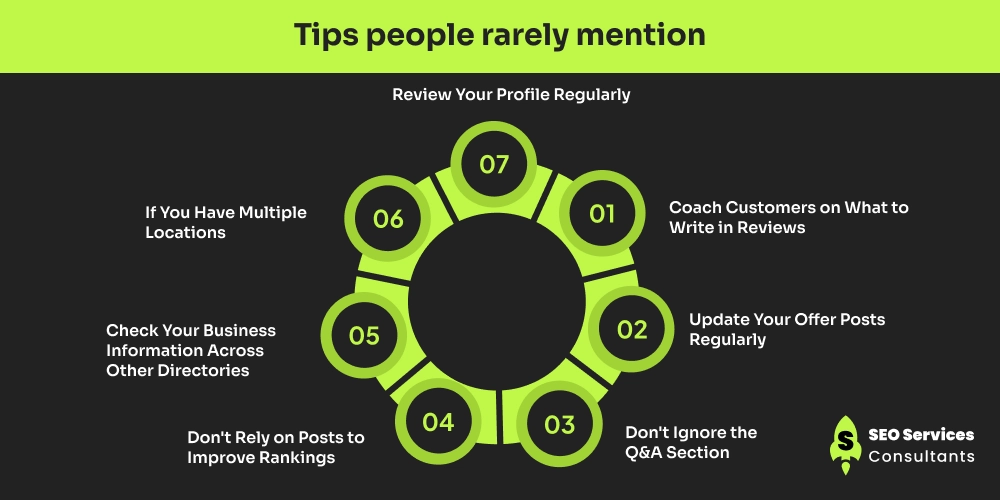
Tips people rarely mention
Coach Customers on What to Write in Reviews
Instead of asking customers to leave a review, guide them on what they can mention. Encourage them to write about the service they received, the location they visited, or the problem your business helped solve. These specific reviews look more genuine and help Google understand your business better.
Update Your Offer Posts Regularly
If you regularly publish offers on your Google Business Profile, avoid using the same promotion for months. Update your offers every few weeks or whenever you launch a new discount. It keeps your profile active and gives customers a reason to visit.
Don't Ignore the Q&A Section
The Q&A section is one of the most overlooked features of a Google Business Profile. Add answers to the questions customers frequently ask, such as pricing, business hours, parking availability, or appointment details. It saves customers time and provides Google with additional information about your business.
Don't Rely on Posts to Improve Rankings
Many businesses believe publishing Google Posts will improve their rankings. While posts help keep your profile active and encourage more clicks, they aren’t a major ranking factor. Instead, spend more time improving your reviews, categories, and business information.
Check Your Business Information Across Other Directories
Updating your Google Business Profile alone isn’t enough. Make sure your business name, address, and phone number are consistent across other directories and social platforms. Inconsistent information can confuse both customers and search engines.
If You Have Multiple Locations
If your business operates in multiple locations, create a dedicated page for each location on your website and make it easy for customers to find the nearest one. This improves user experience and supports your local SEO efforts.
Review Your Profile Regularly
Don’t wait until your profile stops generating leads. Review it every few months to ensure your business hours, services, categories, photos, and contact information are up to date. Regular maintenance helps keep your profile accurate and competitive.
Need expert assistance?
If this optimization seems a little tricky and you’re genuinely looking to grow your business and are ready to invest, then reach out to an experienced SEO agency that has already worked in this field and knows how to optimize Google Business Profiles effectively.
Consult an SEO services consultants for more information and a professionally optimized business profile that ranks well and is easy for customers to find.