Table of Contents:
- Introduction
- What Is Google Search Console?
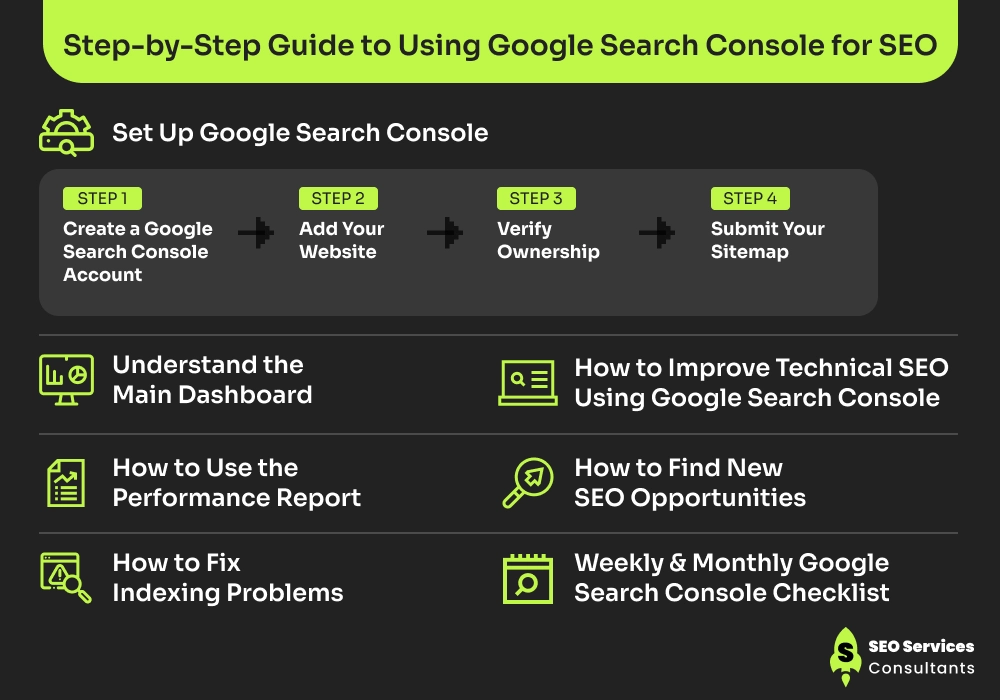
- Step-by-Step Guide to Using Google Search Console for SEO
- Conclusion
- Frequently Asked Questions
If you are willing to rank your website and improve its organic traffic, having great content is not enough. You must know what is working, how users are perceiving it, and whether your website is free from technical issues. You need data that helps you find areas of improvement. This is exactly where Google Search Console (GSC) comes in. It provides valuable insights to improve your website’s search performance.
GSC is a free monitoring tool from Google that helps you understand how your website appears in search results, identify issues affecting its visibility, and find opportunities to improve its rankings and traffic. It’s a hands-on SEO toolkit that helps you make data-driven decisions to boost rankings and improve the overall performance of your website.
In this guide, you will learn how to set up Google Search Console, understand its key reports, fix common problems, and use its data to improve your rankings and drive more organic traffic.
Let’s get started!
Key Takeaways:
- Google Search Console is a free, essential SEO tool that helps you track search performance, fix indexing issues, and improve visibility in Google Search.
- Set up your site, verify ownership, and submit your sitemap to start collecting data.
- Use the Performance report to find high-impression, low-CTR pages and optimize titles and meta descriptions.
- Check the Pages report regularly to identify and fix crawl errors and indexing problems.
- Use the URL Inspection tool to check individual pages and request indexing after updates.
- Review Core Web Vitals and mobile usability to improve user experience and technical SEO.
- Use GSC data to find new keyword opportunities, update old content, and strengthen internal linking.
- Follow a simple weekly and monthly checklist to stay consistent and keep improving rankings and traffic over time.
What Is Google Search Console?
Google Search Console (GSC) is a free tool from Google that helps website owners see how their website performs in Google search. It shows important data such as clicks, impressions, indexing status, and search queries, so that you can understand how Google perceives your website and what can be the possible areas for improvement.
GSC gives you direct insights into how Google crawls, indexes, and ranks your website, so you can identify and work on issues that affect its performance and improve visibility in search results.
It’s a useful SEO tool that provides first-party data directly from Google, which makes it the most reliable tracking tool for a website’s organic search performance and making informed SEO decisions. Whether you are a small business owner or an e-commerce store owner, Google Search Console can help you better understand customers reaction on your website and lets you know what’s working best.
Step-by-Step Guide to Using Google Search Console for SEO
Google Search Console comes with a collection of useful data, but only looking at insights you can’t upgrade your website’s performance. You need to first understand what each metric in the specific report means and how you can utilize it to make necessary improvements.
Following are the steps to use Google Search Console to boost your website’s ranking and traffic:
1: Set Up Google Search Console
To start tracking your website’s performance in Google Search Console, you first need to create an account and add your website as a property.
Step 1: Create a Google Search Console Account
- Go to search.google.com/search-console
- Sign in with your Google account and click Start now.
- If you already use Gmail or Google Analytics, it is best to use the same account to keep everything connected.
Step 2: Add Your Website
To add your website, Google Search Console offers two property types: Domain Property and URL-Prefix Property. Choose a property type that best suits your requirements.
Feature |
Domain Property |
URL-Prefix Property |
|---|---|---|
| Covers | All versions (http, https, www, non-www) | Only the exact URL you enter (e.g. https://www.site.com) |
| Verification Method | DNS record only | HTML tag, HTML file, Google Analytics, Google Tag Manager, DNS |
| Recommended For | Most websites | Specific website versions or testing |
For most websites, Domain Property is generally the better choice. It covers your entire domain and tracks all subdomains and protocols together.
Step 3: Verify Ownership
Depending on the property type you choose, Google requires you to verify the ownership of your website before it can start collecting any data. The verification can be done using one of the following methods:
- DNS record: Add a TXT record through your domain registrar.
- HTML meta tag: Paste the meta tag of your website.
- Google Analytics: If you have already installed Google Analytics and are an admin, verification can be completed in just one click.
- Google Tag Manager: The same process applies if you have already installed GTM.
However, if you are setting up a Domain Property, you need to proceed with DNS verification as the other options are unavailable.
Step 4: Submit Your Sitemap
- Once your website is verified, the next step is to submit your XML Sitemap.
- This helps Google discover and crawl your pages more efficiently.
2: Understand the Main Dashboard
Once your website is set up, you can start with the main dashboard to get a quick review of its health and performance. The left side menu provides you access to the most important sections and different reports to help you monitor your website’s performance.
Here’s a quick overview of each section:
Section |
Purpose |
|---|---|
| Overview | Provides a snapshot of your website's search performance, indexing status & page experience. |
| Performance | Shows clicks, impressions, CTR, average position, keywords & top-performing pages. |
| URL Inspection | Checks whether a page is indexed & allows you to request indexing after publishing or updating content. |
| Pages (Indexing) | Displays indexed & non-indexed pages along with indexing issues that require attention. |
| Experience | Includes Core Web Vitals & other page experience signals that affect usability. |
| Links | Shows your internal links, external backlinks & most linked pages. |
| Sitemaps | Lets you submit & monitor your XML sitemap. |
| Settings | Displays property settings, verification details, & user permissions. |
Understanding these sections will help you easily navigate the platform. You don’t need to check every section daily. Performance and indexing are the two most important sections you should keep an eye on.
3: How to Use the Performance Report
The performance report is the most important section for SEO. It provides you with data on how your website performed in Google searches and highlights the areas of improvement.
Key Performance Metrics Explained:
Metric |
What It Means |
Why It Matters |
|---|---|---|
| Clicks | Number of times users clicked your site from Google | Actual traffic from search |
| Impressions | How many times your site appeared in search results | Shows your visibility |
| CTR | Click-through rate (Clicks ÷ Impressions) | Tells if your title & description work |
| Average Position | Average ranking of your pages | Shows how high you rank |
How to Use This Data:
- Find keywords your website is ranking for: From the queries tab, you can find search terms used by people to find your website.
- Find pages that get impressions but very low clicks: These are pages with high impressions but low CTR.
- You can filter data by Query, Page, Country, Device (Mobile / Desktop), and Date range.
Use these insights to identify pages that need improvements. Below are some common actions that can be done to improve rankings:
Recommended SEO Actions:
What You See in GSC |
What It Means |
Recommended SEO Action |
|---|---|---|
| High impressions, low CTR | Users see your page but don't click | Improve title tags and meta descriptions |
| Average position 11–20 | Close to Page 1 | Update content, add internal links, improve on-page SEO |
| Sudden drop in clicks | Rankings or demand may have changed | Check for technical issues and refresh the content |
| Page not indexed | Google can't show it in search | Use URL Inspection and request indexing after fixing the issue |
| Declining impressions | Reduced visibility | Review keyword targeting and update the content |
4. How to Fix Indexing Problems
If Google can’t index your pages, they will never appear in searches or rank.
- Check the Pages Report: You get a report on how many pages are indexed and how many are left.
- Find pages that are not indexed: Check the reason under “Why pages aren’t indexed.” The common issues generally are crawling errors, soft 404, blocked by robots.txt, and excluded by the ‘noindex’ tag.
- Use the URL Inspection Tool: You can check the indexing status of individual pages.
- Request Indexing: If an important page is not indexed, you can request indexing.
5: How to Improve Technical SEO Using Google Search Console
Technical SEO plays an important role in helping search engines crawl and rank your website. Google Search Console can help you identify technical SEO issues affecting your website’s visibility and performance.
Use the following reports to improve your website’s technical SEO:
- Core Web Vitals: Check how many URLs are rated Good, Needs Improvement, or Poor based on loading speed (LCP), interactivity (INP), and visual stability (CLS).
- Fix mobile usability issues: Check for errors such as text too small to read, clickable elements too close together, or content wider than the screen.
- Check for security problems or manual actions: Ensure there are no manual actions or security issues (malware, hacked content, etc.)
- Monitor crawl stats: Check how often Googlebot crawls your website and whether it's hitting errors. A spike in errors is often a sign of a server or technical issue.
6: How to Find New SEO Opportunities
a) Discover new keywords
Google Search Console can be very helpful in discovering new content and keyword opportunities. You can use new keywords in the following ways:
- You can use the Queries report to discover new keywords your website is already appearing for.
- If you haven’t targeted any of these keywords, these are your new opportunities to explore.
- Build your new content around these keywords.
b) Find content that needs updating
- Identify pages that previously ranked well but have lost positions over time.
- Update old content with fresh information, better structure, and new keywords.
c) Identify pages that can rank higher
- Look for pages that are ranking between positions 4 and 15.
- These pages have a better chance of appearing on the first page or in top positions.
- With slight improvements like better content, internal links, and title optimization, these pages can rank better and bring in significant traffic.
7. Weekly & Monthly Google Search Console Checklist
By consistently reviewing Google Search Console, you can maintain healthy SEO performance and fix issues before they start affecting the website’s performance.
Here’s a simple action plan to review Google Search Console:
Task |
Frequency |
Where to Check |
|---|---|---|
| Review clicks, impressions, and CTR trends | Weekly | Performance report |
| Check for new indexing errors | Weekly | Indexing (Pages) report |
| Review Core Web Vitals and mobile usability | Monthly | Experience report |
| Check for security issues or manual actions | Monthly | Security & Manual Actions |
| Find new keyword opportunities | Monthly | Performance > Queries |
| Review pages with dropping clicks/positions | Monthly | Performance > Pages (date comparison) |
| Resubmit sitemap after major site changes | As needed | Sitemaps |
Conclusion
Google Search Console is one of the most valuable free tools for improving your website’s SEO performance. It gives you direct insight into how your website performs on Google Search.
However, the real value lies in how you set up Google Search Console and use the data it provides. By setting GSC correctly, tracking the right metrics, and fixing the issues, you can improve your rankings and drive more organic traffic. Make reviewing Google Search Console a part of your regular routine and discover new opportunities for long-term growth.
Frequently Asked Questions
Is Google Search Console free to use?
Yes, Google Search Console is a completely free tool. You only need a Google account to access it.
Do I need SEO knowledge to use Google Search Console?
No, you can start using Google Search Console with some basic knowledge. This tool is designed to help beginners understand how their website performs on Google Search.
How long does it take to see data in Google Search Console?
Once you verify your property, it usually takes 24 to 48 hours for new data to appear. However, it may take one to two weeks for enough data to accumulate for meaningful analysis.
Can Google Search Console help me rank higher in Google?
Yes, indirectly, Google Search Console helps improve ranking. It provides you with valuable insights, helps in fixing technical issues, and lets you optimize pages based on real data.
How often should I check Google Search Console?
You can check it at least once a week for performance and errors. Additionally, you can check Core Web Vitals, security issues, and crawl reports once a month for a deeper review.
Can I use Google Search Console for multiple websites?
Yes, you can add and manage multiple websites or properties on Google Search Console under the same Google account.
What is the difference between Google Search Console and Google Analytics?
Google Search Console shows the performance of your website in Google Search (keywords, rankings, impressions, indexing issues). On the other hand, Google Analytics shows what users do after they visit your website (behavior, bounce rate, conversions). When used together, both tools offer the best performance.